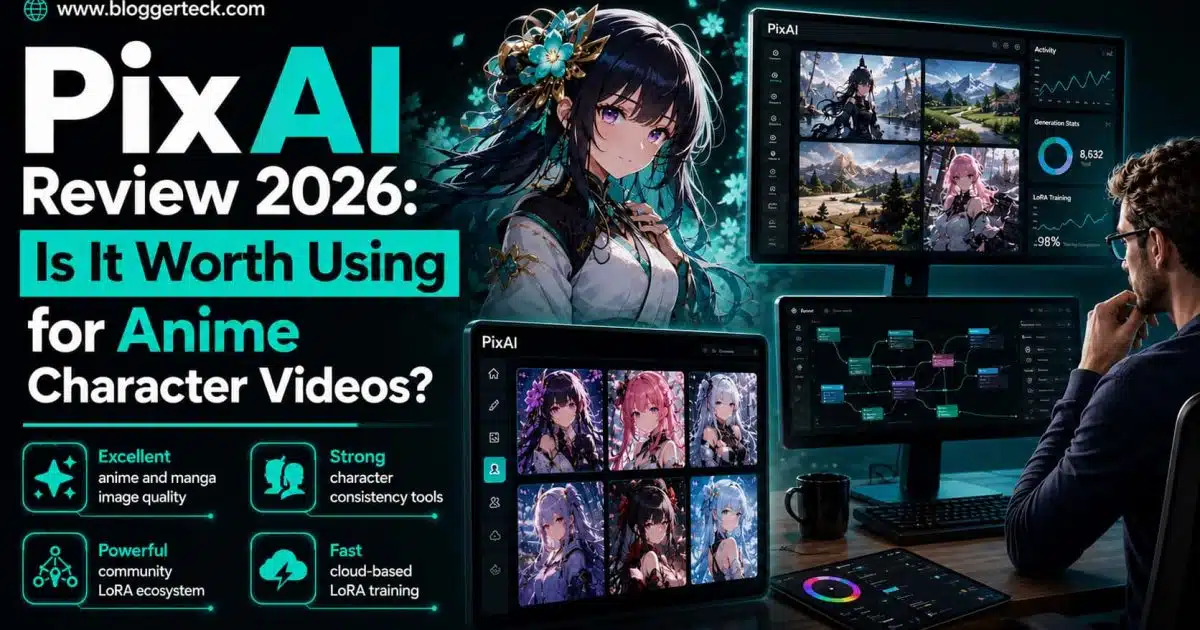
PixAI is worth considering if your goal is to create an anime character, refine the design, and turn it into a short animated clip without moving between several different platforms.
That makes it slightly different from the tools people may already be comparing it with. NovelAI is primarily known for anime image generation, while CivitAI is built around models and community resources. General-purpose video platforms such as Runway and Pika offer broader filmmaking tools, but anime character creation is not their central focus. PixAI sits somewhere between these categories: it begins as an anime image and character platform, then extends that workflow into short-form video.
The main limitation is equally important. PixAI is not a full animation suite, and it is not designed to produce complete anime episodes or tightly controlled multi-shot scenes. Its current video tools are better suited to short character clips, animated illustrations, social posts, and visual experiments.
This review looks at PixAI’s pricing, Image-to-Video workflows, video controls, models, and the types of creators who are most likely to find it useful.
We partner with awesome companies that offer products that help our readers achieve their goals! If you purchase through our partner links, we get paid for the referral at no additional cost to you! For more information, visit our disclaimer page.
What Is PixAI, and What Makes It Different From a Standard AI Video Generator?
PixAI is an anime-focused AI creation platform that combines image generation, character models, LoRAs, image editing, enhancement tools, and short-form video generation. Launched in October 2022, the platform has developed from an anime image-generation service into a broader creative environment for character-based visual production.
What Styles and Platforms Does PixAI Support?
The platform is mainly built around anime, manga, and illustration styles. Users can generate a character from a written prompt, browse community models, train or apply LoRAs, edit an existing image, and then animate that image without leaving the same creative environment. PixAI is available through desktop and mobile browsers, as well as dedicated iOS and Android apps.
Is PixAI a Cinematic Video Tool Like Runway or Pika?
That broader workflow is what separates it from a standard AI video generator. PixAI is not primarily a cinematic video tool like Runway or Pika. It is an anime character creation platform with video features integrated into the process.
Does its Workflow Start With a Video Prompt?
This distinction matters because the most natural PixAI workflow does not necessarily begin with a video prompt. It may begin with a character concept, an existing original character, or a still illustration. The user can improve the design first—adjusting the outfit, expression, background, composition, or image quality—and only then spend credits animating it.
For creators who care more about the character than about building a complex video timeline, that structure makes sense. It gives them a connected path from a first visual idea to a finished short clip.
PixAI Pricing: Free vs. Starter, Plus, and Premium
| Plan | Standard monthly price | Current annual promotion | Annual charge | Monthly credits | Video access |
| Free | Free | Free | Free | No monthly membership credits | Not included as a regular membership benefit |
| Starter | $10/month | $5/month equivalent | $60 annually | 300,000 | Image-to-Video |
| Plus | $30/month | $15/month equivalent | $180 annually | 1,000,000 | Video Suite and Enhanced Mode |
| Premium | $50/month | $25/month equivalent | $300 annually | 2,000,000 | Video Suite and Enhanced Mode |
Is PixAI Free to Use?
PixAI can be used for free for image generation, but its regular free membership does not include ongoing access to the full Video Generation Suite. Users who specifically want to create anime videos will generally need at least the Starter membership.
What Do Its Paid Plans Include?
PixAI currently offers three paid plans: Starter, Plus, and Premium. All three include Image-to-Video, Turbo Mode, monthly credits, larger daily credit rewards, and expanded LoRA benefits. Plus and Premium also unlock Enhanced Mode for video generation.
PixAI’s Current Annual Discount
At the time of writing, PixAI is running a 50% discount on annual memberships. The figures below reflect the prices shown on the live membership page during that promotion.
Plan Standard monthly price Current annual promotion Annual charge Monthly credits Video access Free Free Free Free No monthly membership credits Not included as a regular membership benefit Starter $10/month $5/month equivalent $60 annually 300,000 Image-to-Video Plus $30/month $15/month equivalent $180 annually 1,000,000 Video Suite and Enhanced Mode Premium $50/month $25/month equivalent $300 annually 2,000,000 Video Suite and Enhanced Mode.
The annual prices are promotional rather than permanent list prices, so readers should check the live membership page before subscribing. PixAI advertises annual savings of up to 50%, but the discount may change or end after the article is published.
What Can You Do With the PixAI Free Plan?
For someone who is still deciding whether PixAI fits their workflow, the free plan is useful for testing its image models, prompt interface, editing experience, and community resources. That matters because the quality of the starting image has a direct effect on the usefulness of Image-to-Video. During the current promotion, PixAI is also offering limited-time access to V3, giving users another way to test its video generation capabilities before committing to a paid plan.
PixAI’s Starter, Plus, and Premium Plans Details
Starter is the lowest paid entry point for ongoing video use. Under the current annual promotion, it works out to $5 per month when the full $60 is paid upfront. It includes the complete Image-to-Video suite, Turbo Mode, three free LoRA training slots per month, and 300,000 monthly credits.
Plus is likely the most relevant option for regular anime video creators. Its current annual promotional price is $15 per month, billed as $180 per year. In addition to one million monthly credits, it unlocks Enhanced Mode, allows up to ten LoRAs per task, and includes five free LoRA training slots each month.
Premium costs $25 per month under the current annual promotion, billed as $300 annually. It is better suited to high-volume users who generate frequently, combine many LoRAs, or need the largest monthly credit allowance. It offers two million monthly credits, ten free LoRA training slots, and support for up to fifteen LoRAs in a task.
For a better comparison, you can go through their pricing comparison table for better decisions.
Monthly vs. Annual Billing:
The difference between monthly and annual billing is significant during the current sale. A user paying month to month would be charged the standard monthly price, while the discounted rate requires paying for the full year in advance.
Does PixAI Sell Credit Packs Separately?
PixAI also sells credit packs separately. Depending on the offer currently available, some packs may include a limited number of video generations or premium tool uses. Because of that, it is more accurate to say that the regular free membership does not include continuous video access, rather than claiming that every non-member is completely unable to try video.
Do PixAI Prices Vary by Region or Platform?
Prices may vary by region, currency, platform, and future promotions. App subscriptions can also cost more than web subscriptions because of App Store and Google Play fees.
Image Generation and Editing Before Animation
PixAI’s video tools make more sense when viewed as the final step of a broader image workflow.
Why Refine an Image Before Animating It in PixAI?
Before animating a character, users can generate the starting artwork, create variations, edit individual details, improve the image quality, and choose the version that is most suitable for motion. This preparation stage can save both credits and time because problems in the source image often become more noticeable once the image begins moving.
What Base Models Does PixAI Offer? (Tsubaki.2 vs. Haruka v2)
PixAI provides several base models for different visual goals. Tsubaki.2 is the platform’s current flagship DiT model and is designed to understand both natural-language descriptions and tag-based prompts. Haruka v2 uses the SDXL architecture and may be more familiar to users who prefer detailed tag control or want access to the wider SDXL LoRA ecosystem.
Editing Tools Does PixAI Offer:
Once an image has been generated, users can move into editing rather than starting over. PixAI’s editing tools include options for changing clothing, expressions, backgrounds, poses, and stylistic details.
Flow Edit
Flow Edit is designed around natural-language instructions and continuous revisions. A user might ask it to change the character’s jacket, soften the lighting, or replace the background while keeping the rest of the image relatively stable.
PixAI Edit Pro and Reference Pro
Edit Pro is intended for more complex modifications and detailed adjustments. Reference Pro uses one or more reference images to guide the result, which can be useful when the creator wants to preserve a particular character, outfit, pose, or visual direction.
Inpainting and Outpainting in PixAI
The platform also includes inpainting and outpainting. Inpainting allows the user to select and regenerate a specific area, while outpainting expands the image beyond its original boundaries. Both can be helpful when preparing a frame for video, particularly when the character needs more space around the body for movement or camera motion.
PixAI’s Enhancement Tools
Enhancement tools can improve resolution, sharpness, facial details, and overall clarity. The goal should not be to apply every available feature, but to produce the cleanest possible source image before animation.
Why PixAI’s All-in-One Editing-to-Video Workflow Matters
This connected process is one of PixAI’s clearest advantages over a standalone video generator. A creator does not need to export the character to several unrelated tools just to correct a face, change an outfit, extend the composition, and then animate it.
The practical workflow is simple: create the character, correct anything that may become distracting in motion, enhance the final frame, and only then move to video.
LoRA and the Model Market: Keeping a Character Consistent
One of PixAI’s more useful features for repeat character work is its support for LoRAs.
What Is a LoRA in PixAI?
A LoRA is a lightweight model add-on that teaches the base model a more specific visual concept. That concept might be a particular character, outfit, pose, art style, or effect. For anime creators, the most relevant use is usually a Character LoRA, especially when the same original character needs to appear across several images or video clips.
Why Does Character Consistency Matter for Original Characters (OCs)?
This matters because producing one attractive clip is relatively easy compared with maintaining a recognizable character over time. A recurring OC may need to keep the same hairstyle, eye color, accessories, clothing design, and overall proportions across different scenes. Without a dedicated character reference or LoRA, those details can gradually shift between generations.
What Is the PixAI Model Market?
PixAI allows users to browse community-created LoRAs through its Model Market or train their own. The marketplace can be useful for experimenting with established styles, poses, outfits, and visual concepts without building everything from scratch. Users creating an original IP, however, may get more value from training a custom LoRA based on their own character images.
Do PixAI LoRAs Work Across All Models?
There is an important compatibility rule to understand. A LoRA must match the architecture of the selected base model. A LoRA trained for SDXL will not automatically work with a DiT.2 or SD 1.5 model. PixAI currently supports several architectures, including DiT.2, DiT.1, SDXL, and SD 1.5, and its LoRA training costs and model options are separated accordingly.
That means users should decide which model ecosystem they plan to work in before training a character LoRA. Training on the wrong architecture may leave them unable to use it with the model they prefer later.
How Many LoRAs Can You Use per PixAI Plan?
Membership also affects LoRA usage. Free users can add up to three LoRAs per generation, while paid plans raise the limit. Under the current plan structure, Starter supports up to five, Plus up to ten, and Premium up to fifteen LoRAs per task. Paid members also receive monthly LoRA training slots.
Do LoRAs Guarantee Character Consistency in Video?
LoRAs can improve the odds of preserving a recognizable character across several generations, but they do not guarantee perfect frame-by-frame consistency. Video introduces motion, camera changes, and newly generated details between frames, so small visual shifts can still appear.
Who Benefits Most From PixAI’s LoRA System?
For creators building a long-term OC, VTuber identity, visual novel cast, or indie game character, PixAI’s LoRA ecosystem is more meaningful than it may first appear. It is the feature that helps move the platform from one-off image generation toward repeatable character production.
How PixAI Creates Anime Character Videos
PixAI’s current video workflow is centered on animating an existing image through Image-to-Video.
Step 1: Create or Upload the Character
Users can generate an original character with a prompt, choose from PixAI’s base models, add LoRAs, or upload an illustration they already own. A creator may also begin with an OC, VTuber concept, visual novel character, or finished artwork made elsewhere.
This means the video process does not have to begin with an entirely new character. Someone who already has a recognizable design can use that artwork as the visual foundation.
Step 2: Refine the Starting Image
Before animation, the character can be adjusted with PixAI’s editing and enhancement tools. This may include changing an outfit, correcting a detail, modifying the background, improving the face, extending the canvas, or increasing the image quality.
This step is easy to overlook, but it is one of PixAI’s main advantages. Video generation consumes more credits than a simple image adjustment, so it usually makes sense to fix the source image before turning it into a clip.
A creator can also generate several image variations first and choose the strongest one. That is often more efficient than repeatedly animating an image that already contains a problem with the face, hands, pose, or composition.
Step 3: Animate the Result
An existing image can be opened and sent to the Animate or Image-to-Video workflow.
The result is a short video rather than a complete scene or episode. Depending on the selected video model and settings, PixAI currently supports clips ranging from around 5 seconds to up to 15 seconds, with the v4.0 Preview series supporting the longest outputs.
Why PixAI’s Three-Step Process Matters
This three-step process—create, refine, and animate—is the clearest way to understand PixAI’s position in the market. Its appeal is not simply that it can generate video. It is that the video feature is connected to an existing anime character creation workflow.
PixAI Image-to-Video: The Strongest Workflow for Existing Characters
Image-to-Video is the more practical PixAI workflow for creators who already have an original character, VTuber design, game asset, or finished anime illustration.
How Does PixAI Image-to-Video Work?
Instead of asking the model to invent both the character and the movement from scratch, the user supplies the first visual frame. PixAI then uses that image as the foundation for the clip.
PixAI Image-to-Video: Step-by-Step Process
The process is relatively straightforward:
Select a generated PixAI image or upload an existing one. Open the animation or Image-to-Video option. Describe the intended movement. Choose the duration, mode, and video model. Add an end frame when greater control over the final state is needed. Review the credit cost and generate the clip.
What Does a Good PixAI Motion Prompt Look Like?
A simple motion prompt may be more effective than an overly ambitious one. For example:
She blinks softly and smiles as her hair moves gently in the wind. The camera slowly moves closer.
This type of restrained animation is well suited to character portraits, social media posts, profile visuals, and scenes where the creator wants to make an illustration feel more alive without changing its underlying composition.
What Happens With More Complex Motion Prompts?
A more complex prompt might ask the character to turn around, raise a hand, walk forward, and interact with the environment. That provides a better stress test, but it also asks the system to invent more body movement and visual information between frames.
What Does an End Frame Do in PixAI?
PixAI also allows users to provide both a start frame and an end frame. The end frame gives the model a clearer destination—for example, moving from a neutral expression to a smile, changing between two poses, or guiding a camera transition. When no end frame is supplied, the model determines the later visual state based on the prompt.
Is PixAI’s End Frame the Same as Keyframe Animation?
This does not provide the same control as traditional keyframe animation. The creator is not manually defining every position between the beginning and the end. The model still decides how the transition happens, and the path it chooses may not perfectly match what the user imagined.
How to Judge Character Consistency in a PixAI Video
The most important question is not simply whether the image moves. It is whether the character remains recognizable during that movement. A useful review should examine the face, hairstyle, outfit, accessories, hands, background, and body proportions throughout the clip.
A character may look consistent in the opening frame but gradually change as the movement becomes more complicated. Small details such as hair accessories, eye shape, clothing patterns, or jewelry may be especially useful indicators of stability.
My PixAI V3.2 Test Results
I tested the same character with both subtle and complex motion using PixAI V3.2. Each 10-second generation cost 72,000 credits.
With subtle motion, the face, hairstyle, and outfit stayed relatively consistent, and the animation looked smoother. With more complex movement, facial and clothing details were more likely to drift, background stability decreased, and some actions were simplified by the model.
Adding an end frame gave me better control over the final pose and expression, although the transition between frames was still generated automatically.
Verdict: When Does PixAI Image-to-Video Work Best?
PixAI worked best for simple character animation such as blinking, smiling, and gentle camera movement. Character consistency became less reliable as the motion became more complex.
For most anime illustrators, Image-to-Video is likely to be the strongest selling point. It fits the way character-focused creators already work: design first, refine second, animate last.
PixAI Video Models, Duration, End Frames, and Voiceover
PixAI’s video interface includes more than a simple prompt box. Users can choose the clip duration, generation mode, start and end frames, and the video model that best fits the intended result.
5- to 15-second clips
PixAI’s available video lengths vary by model, ranging from short 5-second outputs to clips of up to 15 seconds. The v4.0 Preview series currently supports generations up to 15 seconds. These durations are suitable for animated artwork, character introductions, reaction clips, social posts, and short visual loops.
They are not long enough for a complete narrative sequence. Anyone expecting PixAI to generate a full anime scene or episode from one prompt will need to adjust that expectation. Longer content would have to be assembled from multiple clips and edited in another program.
The short duration also affects how prompts should be written. One focused action is usually easier to communicate than a sequence of several unrelated actions. A short clip might show a character blinking, smiling, or turning toward the camera, while a longer 15-second generation gives the model more room for motion or dialogue.
Start and end frame control
The start frame establishes the character and composition at the beginning of the clip. An optional end frame gives the model a visual target for the final moment.
This can be useful for:
Guiding a change in expression; Moving between two poses; Showing a character turning; Controlling the final camera position; Creating a more intentional visual transition.
It is still AI-generated interpolation rather than a traditional keyframe animation system. The user is not manually controlling every frame between the two images, and the model may interpret the transition differently from a human animator.
The quality of the two input frames also matters. If the start and end images differ dramatically in anatomy, style, clothing, or camera angle, the model has to resolve a much more difficult transition. More closely related frames may produce a more coherent result.
Normal and Enhanced modes
All three paid memberships include PixAI’s Video Generation Suite. Starter provides the standard video workflow, while Plus and Premium also receive exclusive access to Enhanced Mode.
PixAI presents Enhanced Mode as its more advanced video option. A fair comparison would use the same source image, prompt, duration, and model in both modes.
The output can then be judged on:
Character consistency; Motion smoothness; Prompt adherence; Preservation of small details; Background stability; Generation time; Credit cost.
Enhanced Mode may be most relevant to users who produce video regularly and are willing to spend more credits in exchange for greater control or quality. Occasional users may find the regular mode sufficient for simple character motion.
Choosing a video model
PixAI offers several video models with different priorities. Its documentation highlights options built around areas such as prompt adherence, higher consistency, HD output, complex motion, and voice generation.
Rather than choosing the newest model automatically, users should consider the type of clip they are making. A character portrait with subtle movement may benefit more from consistency, while an action-oriented prompt may require a model designed to handle larger motion changes.
It is also useful to keep one model fixed when comparing prompts. Changing the prompt, model, duration, and mode at the same time makes it difficult to understand which setting caused the difference in output.
AI voiceover
Some PixAI video models also support AI-generated voiceovers. Current documentation lists support for several languages, including English, Japanese, Chinese, and Korean, depending on the model and settings.
This can be useful for short character lines, introductions, and social content. It reduces the need to export a silent clip and record audio separately for very simple projects.
However, voice generation should not be confused with a complete dialogue-production workflow. The feature still needs to be evaluated for voice naturalness, pronunciation, emotional delivery, timing, and mouth movement. A generated voice may sound acceptable on its own while the character’s lips remain only loosely connected to the spoken line.
The final review should therefore treat video quality and voice quality as separate questions rather than assuming that audio support automatically produces convincing character performance.
PixAI Video Pros and Cons
PixAI has a clear identity as an anime character platform, but that does not mean it is the right video tool for every creator. Its strengths are most noticeable when the user already works with anime illustrations, OCs, LoRAs, and short-form character content.
Pros
Anime-focused from the beginning
PixAI is not a general video platform that happens to include an anime preset. Its models, community resources, prompts, LoRAs, and editing tools are already centered on anime and character artwork. That makes the starting point more relevant for users who are not interested in photorealistic commercial video.
A natural Image-to-Video workflow
Creators who already have an OC or finished illustration can animate that image instead of asking the model to redesign the character from scratch. This gives the process a more useful starting point and may provide greater control over the character’s appearance.
Start- and end-frame support
The option to provide an end frame gives users a clearer way to guide a transition. It does not offer full keyframe control, but it is more flexible than relying on a single starting image and motion prompt.
Built-in LoRA ecosystem
The Model Market and custom LoRA training are particularly valuable for repeat character work. Users can build around a consistent OC rather than generating an unrelated character each time.
Image creation, editing, and animation in one platform
PixAI supports the preparation work that often comes before video generation. Users can adjust the outfit, expression, framing, background, and image quality without repeatedly exporting files to another service.
Accessible through web and mobile apps
PixAI is available through desktop and mobile browsers, along with iOS and Android apps. This makes it relatively easy to review generations or continue working away from a desktop. However, the review should not claim complete feature parity between platforms unless each version has been independently checked.
Cons
Video generation requires a paid plan
The free membership is useful for testing image generation, but ongoing access to the Video Generation Suite is a paid benefit. Users who are mainly interested in video cannot fully evaluate that workflow through the standard free plan alone.
The credit system takes time to understand
The cost of a generation can depend on the model, duration, mode, and other settings. This is more flexible than a fixed limit, but it is less immediately clear than a simple “number of videos per month” subscription.
Clips generally run from 5 to 15 seconds
PixAI is designed primarily for short-form outputs. Depending on the model, clips range from around 5 seconds to as long as 15 seconds. This makes the platform suitable for animated illustrations, social posts, character reactions, and brief visual moments, but not for producing an entire episode or long narrative sequence in one generation.
It is not a full video editor
PixAI does not replace a traditional editing or animation program. Users who need a timeline, detailed keyframes, multi-shot sequencing, transitions, sound design, and precise timing will still need another tool.
Complex movement is less consistent
In my testing, larger body movements made facial and clothing details more likely to drift, while background stability also decreased. PixAI handled subtle character motion more consistently than complex movement.
Character consistency is improved, not guaranteed
A strong source image, a matching LoRA, and a restrained motion prompt can help, but details may still change between frames. Accessories, clothing patterns, hands, and facial features are useful areas to watch during testing.
Content rules may affect some users
Creators working with mature or borderline material should review PixAI’s current content and publication policies before subscribing. It would not be responsible to claim that PixAI is stricter or more permissive than a named competitor without comparing the current official policies under the same conditions.
PixAI’s pros are closely connected to its anime-specific workflow. Its weaknesses mainly appear when users expect it to behave like a professional animation suite or long-form video platform.
Who Should Use PixAI—and Who Should Skip It?
PixAI is best suited to creators whose starting point is a character rather than a blank video timeline.
That distinction also helps explain where it sits relative to alternatives such as NovelAI, CivitAI, Runway, and Pika.
PixAI vs. NovelAI, CivitAI, Runway, and Pika: Which Should You Choose?
Creators who primarily want anime image generation and writing-oriented creative tools may find NovelAI closer to their needs. Users whose main priority is discovering, downloading, and experimenting with a large ecosystem of community models may prefer CivitAI.
Runway and Pika approach the problem from the opposite direction. They are broader AI video platforms and are more natural choices for creators whose priority is general video production, cinematic experimentation, or a wider range of visual styles.
Where PixAI Fits Between These Platforms
PixAI sits between these categories. Its advantage is the ability to create an anime character, refine it with image tools and LoRAs, and then animate that same character without leaving the platform.
That includes anime illustrators who want to add subtle motion to finished artwork, OC creators building recurring characters, VTuber creators developing promotional visuals, and visual novel or indie game teams preparing short character clips.
It may also appeal to webcomic creators, role-play communities, and social media users who want to produce animated introductions, reaction clips, character reveals, or looping posts without learning a traditional animation pipeline.
The platform is especially relevant for users who already value LoRAs and character-specific models. Those creators can generate a character, refine the design, maintain a recognizable style, and animate the final image within one environment.
Who should consider PixAI
PixAI is likely to be a good fit for:
Anime and manga-style character creators; Artists with existing OCs; VTuber concept and promotional creators; Visual novel and indie game teams; Webcomic and light novel creators; Social media creators making short animated posts; Users who want to combine LoRAs with video; People who prefer a connected image-to-video workflow.
Quick Comparison: PixAI vs. NovelAI vs. CivitAI vs. Runway vs. Pika
Compared with NovelAI, PixAI is more relevant when animation and a broader character-production workflow are priorities rather than image generation alone.
Compared with CivitAI, PixAI may make more sense for creators who want the model ecosystem and the actual creation/editing/video workflow in one platform rather than primarily using a model-sharing community.
Compared with Runway or Pika, PixAI is more specialized. It is a stronger fit when the project begins with an anime character, while those broader platforms may be more appropriate when the project begins with a video concept.
Who should skip PixAI
PixAI is less suitable for anyone who needs professional broadcast-quality animation, long-form video generation, detailed acting, or precise control over every frame.
Creators primarily making live-action, photorealistic, advertising, or cinematic video may find a broader platform such as Runway or Pika more relevant.
Users who mainly want to browse and experiment with downloadable community models and do not need an integrated anime creation workflow may get more value from CivitAI.
Creators whose main requirement is anime still-image generation rather than animation should also compare PixAI directly with tools such as NovelAI before paying specifically for video access.
Creators producing several minutes of continuous footage will need to generate and assemble multiple clips. Anyone who requires advanced lip sync, a traditional editing timeline, manual keyframes, or complex multi-character choreography should use dedicated animation and editing software.
It is also not the most obvious choice for creators whose work is primarily live action, product footage, or photorealistic cinematic video. PixAI’s main advantage lies in anime and illustrated characters.
Finally, users who dislike credit-based pricing may prefer a tool with clearer fixed generation limits. PixAI offers flexibility, but the user still needs to monitor the cost of different models, modes, and durations.
Bottom Line: Who PixAI Is Really For
The clearest summary is that PixAI works best for creators who want to build an anime character and then make that character move. It is less compelling when the primary goal is either model collecting, still-image generation alone, or general-purpose filmmaking.
Frequently Asked Questions About PixAI
Is PixAI free to use?
Yes, PixAI can be used for free for image generation. Free users can claim daily credits, generate images, browse community models, and try parts of the editing workflow.
The standard free membership does not include ongoing access to the full Video Generation Suite. Regular Image-to-Video access begins with the Starter plan. Limited promotional packs may occasionally include a small number of video generations, so current offers should be checked separately.
Can PixAI animate an existing anime character image?
Yes. PixAI’s Image-to-Video workflow allows users to select a generated image or upload an existing illustration and animate it with a motion prompt.
Users can also provide an optional end frame to guide the final visual state. This can help with expression changes, pose transitions, camera movement, and other simple transformations.
The feature does not provide the same manual control as traditional keyframe animation, and character details may still shift during more complicated movement.
How long are PixAI videos?
PixAI currently supports video generations ranging from around 5 seconds to up to 15 seconds
These lengths are suitable for animated illustrations, character showcases, reaction clips, visual loops, and social posts. They are not intended to generate complete anime episodes or long narrative scenes in a single output.
Longer projects would need to combine several generated clips in a separate video editor.
Does PixAI support consistent original characters?
PixAI provides several tools that can help maintain a recognizable original character, including Character LoRAs, the Model Market, reference-based editing, and Image-to-Video.
A custom Character LoRA can teach the model details such as the character’s hair, facial features, clothing, and accessories. However, the LoRA must match the architecture of the base model being used.
These features can improve consistency across several generations, but they do not guarantee perfect frame-by-frame stability in video.
Does PixAI have a mobile app?
Yes. PixAI offers native iOS and Android apps, and the website also supports mobile browsers.
Users can generate images and access PixAI from a phone, although the final review should avoid claiming that every desktop video feature is available in exactly the same form on mobile unless both apps have been tested directly.
Final Verdict: Is PixAI Worth It for Anime Videos in 2026?
PixAI is worth considering for anime creators who want an integrated way to design, refine, and animate characters into short clips, but it is not a replacement for a professional animation or video-production suite.
Its strongest feature is not the video generator in isolation. The real value comes from the connection between character generation, community models, custom LoRAs, image editing, enhancement, and video output.
Best PixAI Workflow If You Already Have a Character
For someone who already has an OC, Image-to-Video is likely to be the most useful workflow. It allows the creator to begin with an established design, correct the image before animation, and use a prompt or end frame to guide the movement.
Depending on the selected model, PixAI currently generates short clips ranging from around 5 seconds to as long as 15 seconds. That makes it most appropriate for social content, character showcases, animated portraits, visual novel promotions, and short narrative or atmospheric moments—not for generating an entire anime episode from a single prompt.
PixAI Plans Recap: Starter vs. Plus vs. Premium
The current annual promotion makes the Starter plan the lowest-cost recurring entry point, at the equivalent of $5 per month when billed as $60 annually. It includes the full Image-to-Video suite.
Plus is the more relevant option for regular video users because it adds Enhanced Mode, one million monthly credits, more LoRA capacity, and additional training slots. Under the current promotion, it costs the equivalent of $15 per month, billed as $180 annually.
Premium is mainly justified for high-volume creators who need two million monthly credits and the highest LoRA limits. For a quick-glance summary, see PixAI’s pricing, rating, and quick facts.
PixAI Is Worth It If…
You create anime characters, already have illustrations you want to animate, use LoRAs, and mainly need short clips rather than full scenes.
Skip It If…
You need long-form video, professional keyframe control, highly complex acting, or an all-in-one replacement for traditional animation and editing software.
We partner with awesome companies that offer products that help our readers achieve their goals! If you purchase through our partner links, we get paid for the referral at no additional cost to you! For more information, visit our disclaimer page.
